
Batch Redaction
You can redact sensitive information from documents across your whole Subject Access Request in a single Batch Redaction task. As per manual redaction, this will allow you to safely Disclose the contents of the access request.
Setting up Redaction Rules
To use batch redaction you must have batch redaction configured on your system. If you are not able to see the controls detailed in this guide, please contact your system admin.
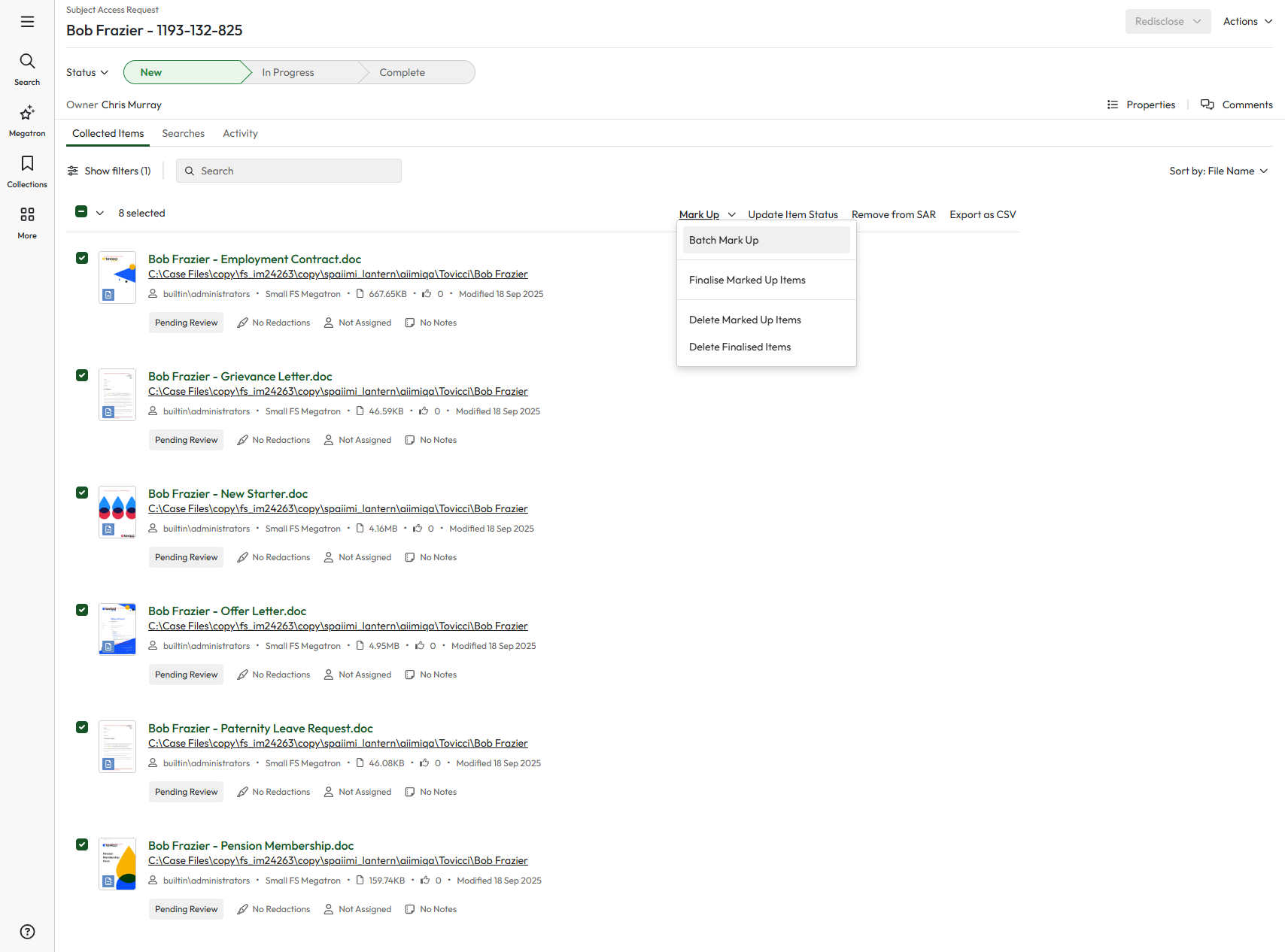
Within the SAR collection, check the records you wish to redact, and select 'Batch Markup' from the 'Markup' bulk actions menu
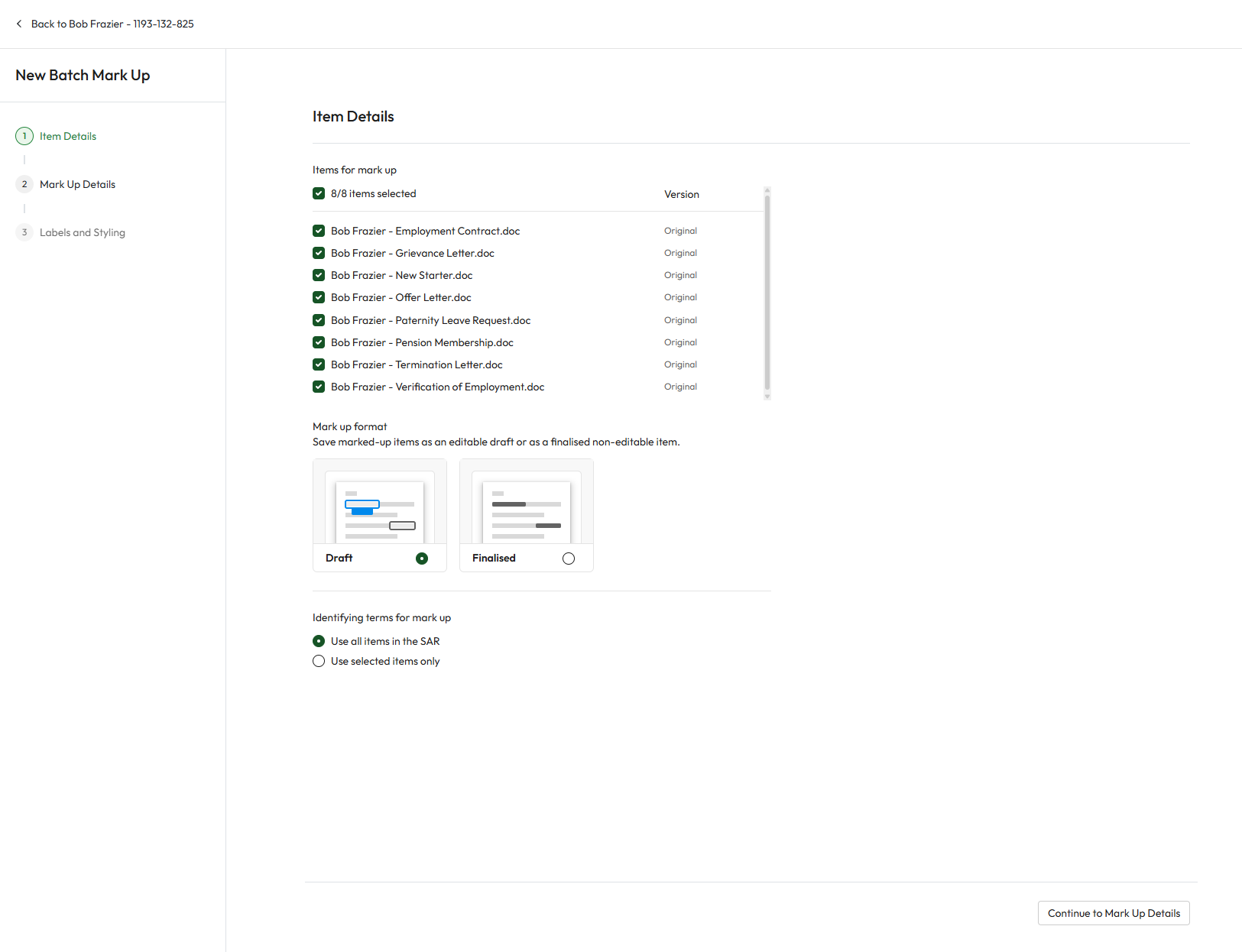
On the first step of the redaction wizard, you can confirm which files your want to update, and you can opt into either 'Draft' or 'Finlaised' mode
Draft: This will markup your files ready for redaction, but will not burn in any redactions. A 'Draft' version of the record will be created ready for review.
Finalised: This will burn redactions into a 'Finalised' version of the record, ready for review and disclosure
You can also select if you wish to based your redaction suggestions on terms found in your selected documents, or all documents within the SAR
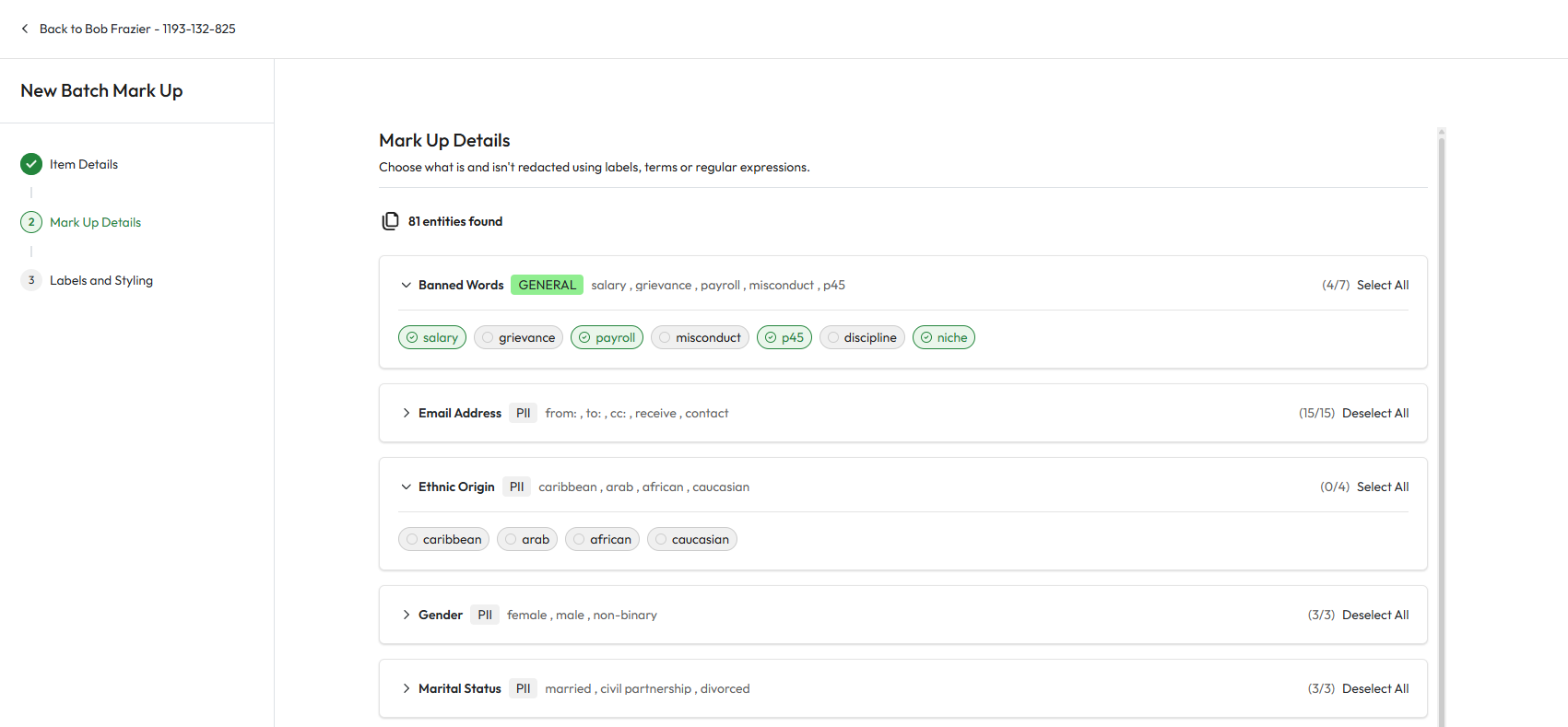
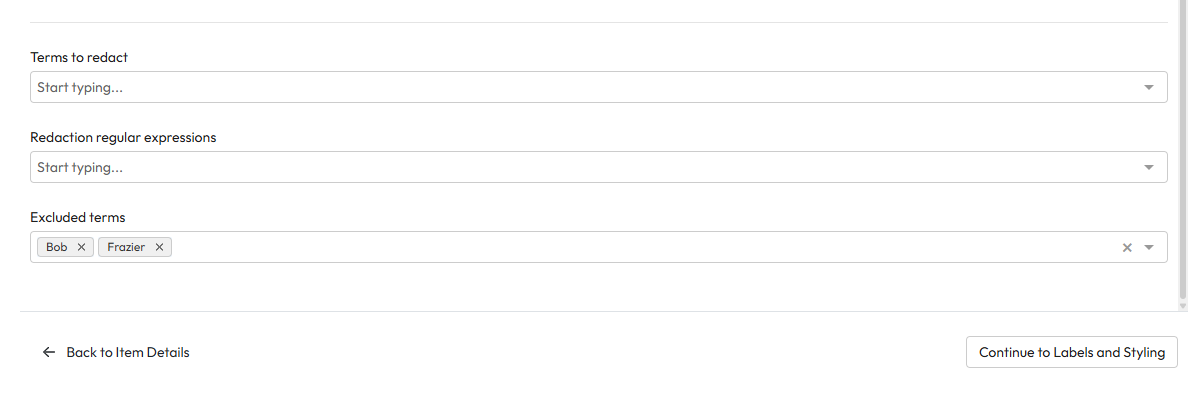
On the second step of the redaction wizard, you can configure which recommended terms you wish to either mark up of finalise. You can also enter custom terms, regular expressions or exclusions.
Exclusions take priority over other settings. If you exclude a value that appears as a suggested term, or a value that you also enter as a manual term or that matches a regular expression, it will not be redacted.
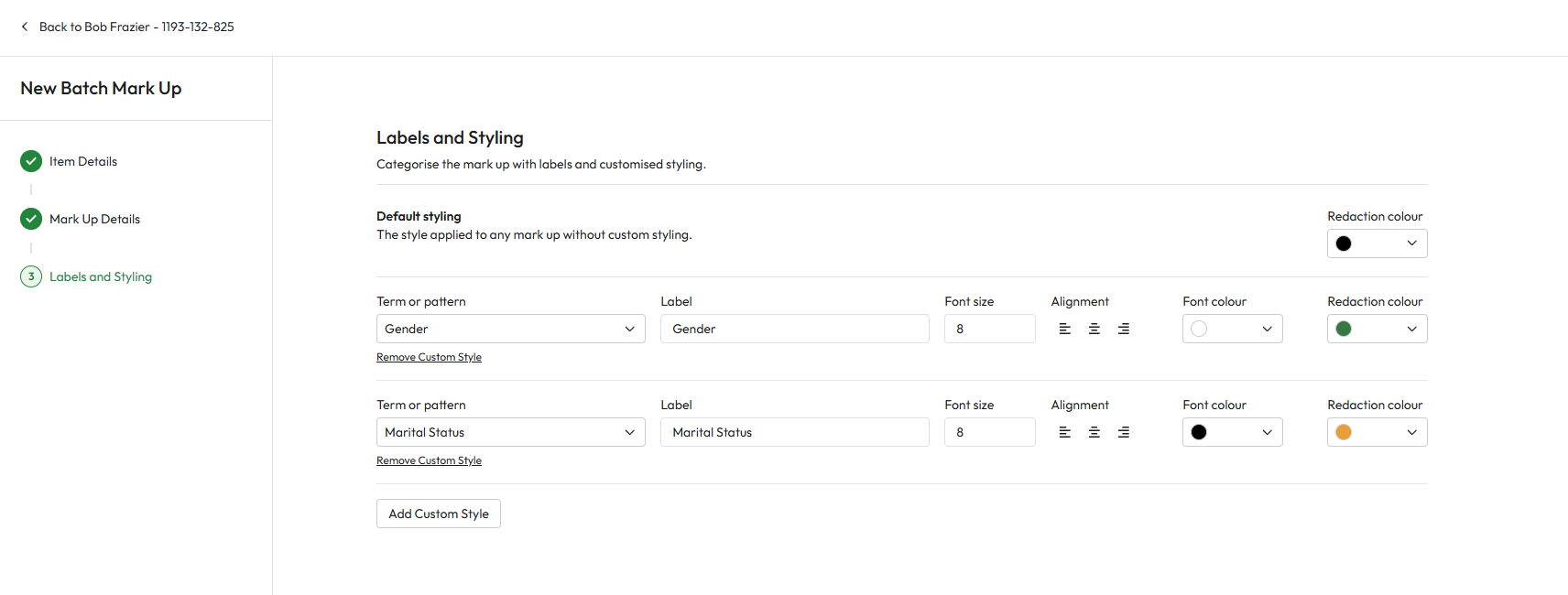
On the final step of the redaction wizard, you can apply styles for each type of redaction. For example, if you want any terms that were flagged as a gender or religion redacted with a specific colour or label, you can do so here.
Applying the batch markup
When the wizard is completed and the 'Create New Batch Markup' button is clicked, Workplace AI will process each of the in scope files in the background and add the markup as per your configuration.
While the batch markup job is running, some functions of your Subject Access Request will be un-available. This is to avoid clashes between the process and the user.
Once applied, you will be able to view the marked up files.
Finalising marked up files
If you chose to perform a 'draft' markup task, you can also 'finalise' these drafts in bulk via the bulk actions menu
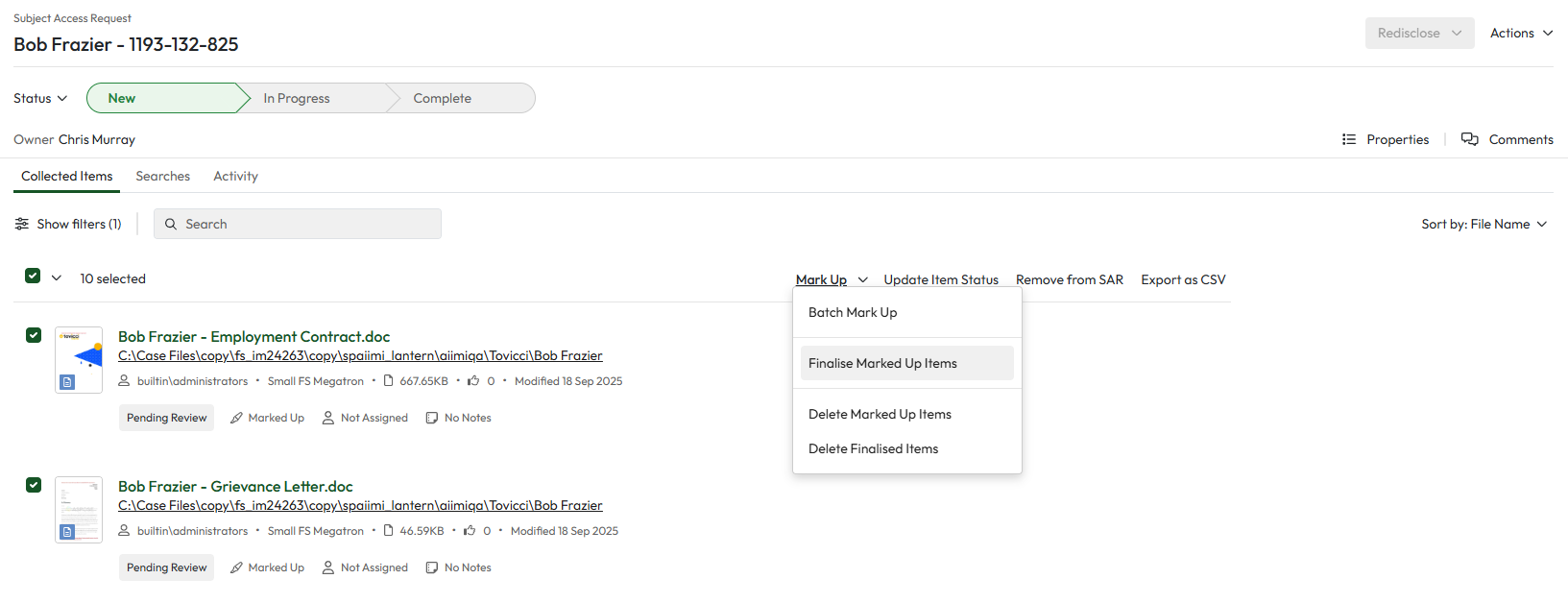
This will kick of a background task to finalise the marked up files, with the draft redactions burned in.
Deleting Marked Up / Finalised Items
The final functoins you can perform from the Mark Up menu is to delete marked up or finalised items. This will remove the records from storage and remove the option to view these versions of each record when in preview.