
Mimecast
Mimecast is an email security company that protects emails from threats like spam, malware, and phishing. Aiimi Insight Engine connects to their cloud email archive service.
Prerequisites
Mimecast Service Account
Aiimi Insight Engine requires a Mimecast Service Account. For information on creating a Service account see Mimecast's documentation on creating a service account user.
Service Account Roles
Your service account requires certain roles to allow Aiimi Insight Engine to crawl Mimecast. For information on service account permissions see Mimecast's documentation on Granting API Service Account User Permissions.
We require the following roles to be assigned:
Archive Menu - Search - Read & Search Content View
Directories Menu > Internal > Read
2.0 API Key
Aiimi Insight Engine requires the Mimecast 2.0 API.
For information on generating an API key see Mimecast's video explaining how to generate an API Key.
The API requires the following products:
If these products are not added you may see a 403 error when using the Util tool.
Email Security Cloud Gateway
Domain Management
Data Retention
Connector
User and Group Management
Awareness Training
Threat Management
Policy Management
Threats
Security Events and Data for CG
Audit Events
Security Events
Account Management
Credentials
The Mimecast connector requires a Client ID and Secret credential. For support setting up a credential see our guide on creating Client ID and Secret credentials.
Configure Mimecast Source
Source System: Select Mimecast from the dropdown.
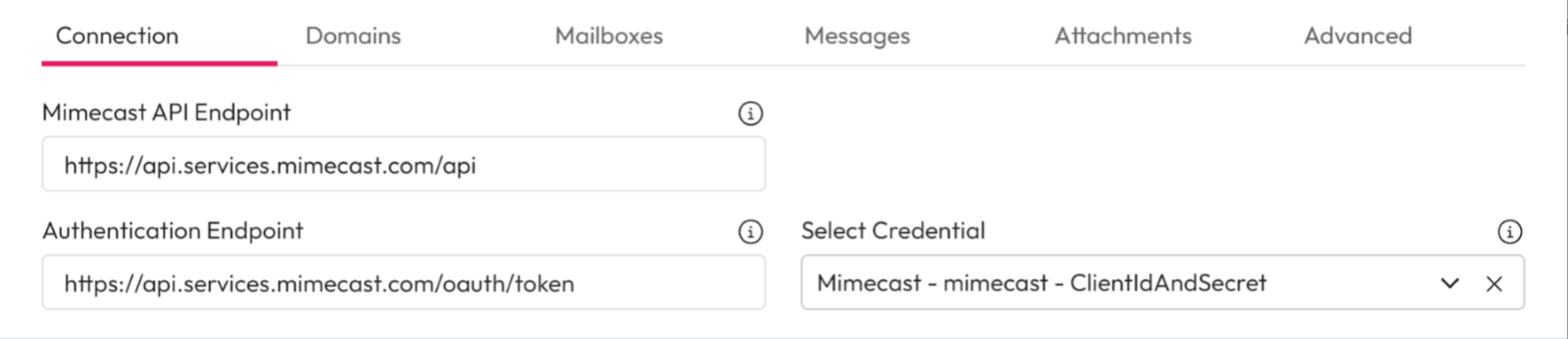
Connection
Mimecast API Endpoint: Enter the Mimecast endpoint to use for API requests.
Authentication Endpoint: Enter the Mimecast endpoint used to authenticate requests.
Select Credential: Choose the Mimecast Client ID and Secret from the dropdown.
For support setting up credentials use our guide on managing credentials.
Select the Domains tab.
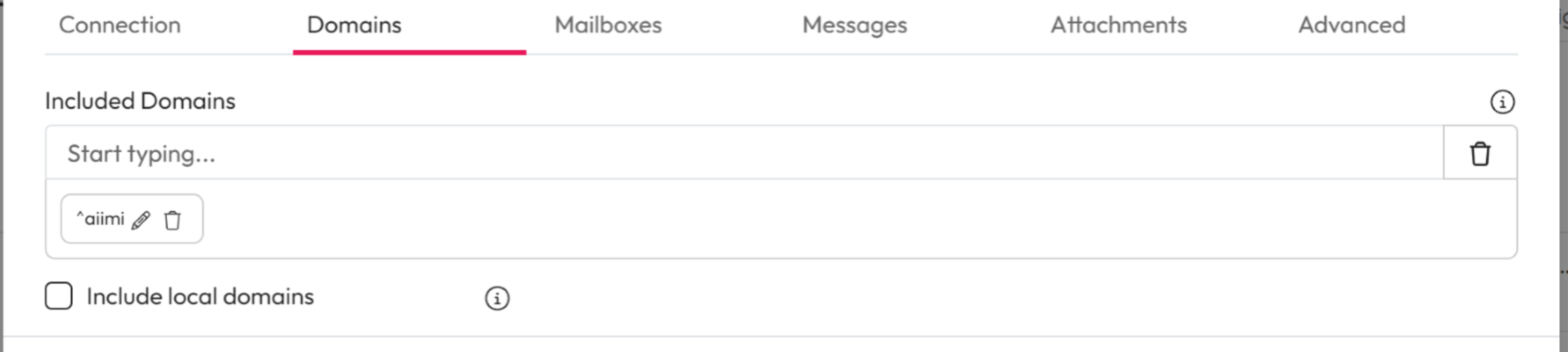
Domains
Included Domains: Choose to crawl specific domains only. Enter the domain names you want to crawl using Regular Expression.
If blank, all domains will be crawled.
Include local domains: If checked, local domains will also be processed.
This depends on the filtered domains.
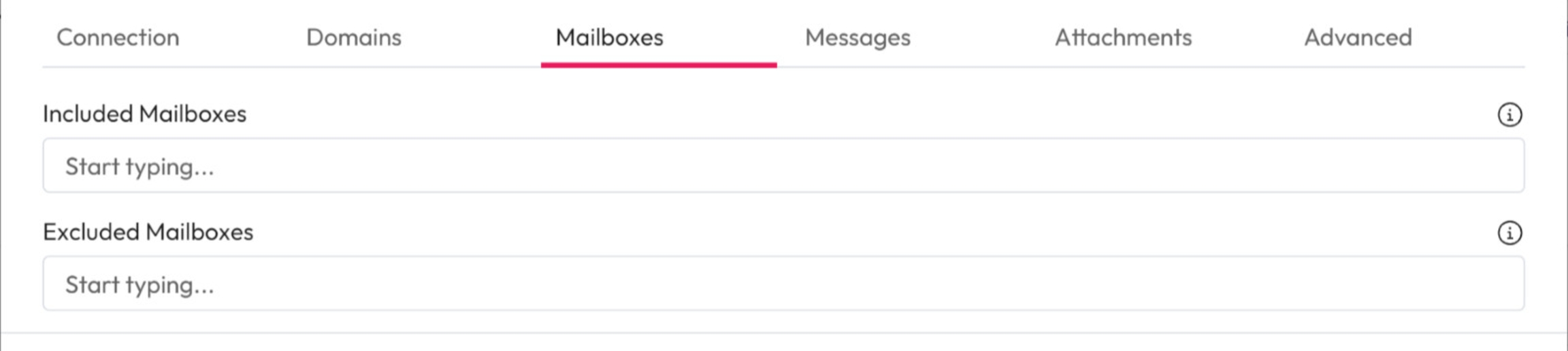
Mailboxes
Included Mailboxes: Choose to crawl specific mailboxes only. Enter the email addresses you want to crawl using Regular Expression.
If blank, all mailboxes will be crawled.
Excluded Mailboxes: Choose to exclude specific mailboxes only. Enter the email addresses you don't want to crawl using Regular Expression.
If blank, all included mailboxes will be crawled.
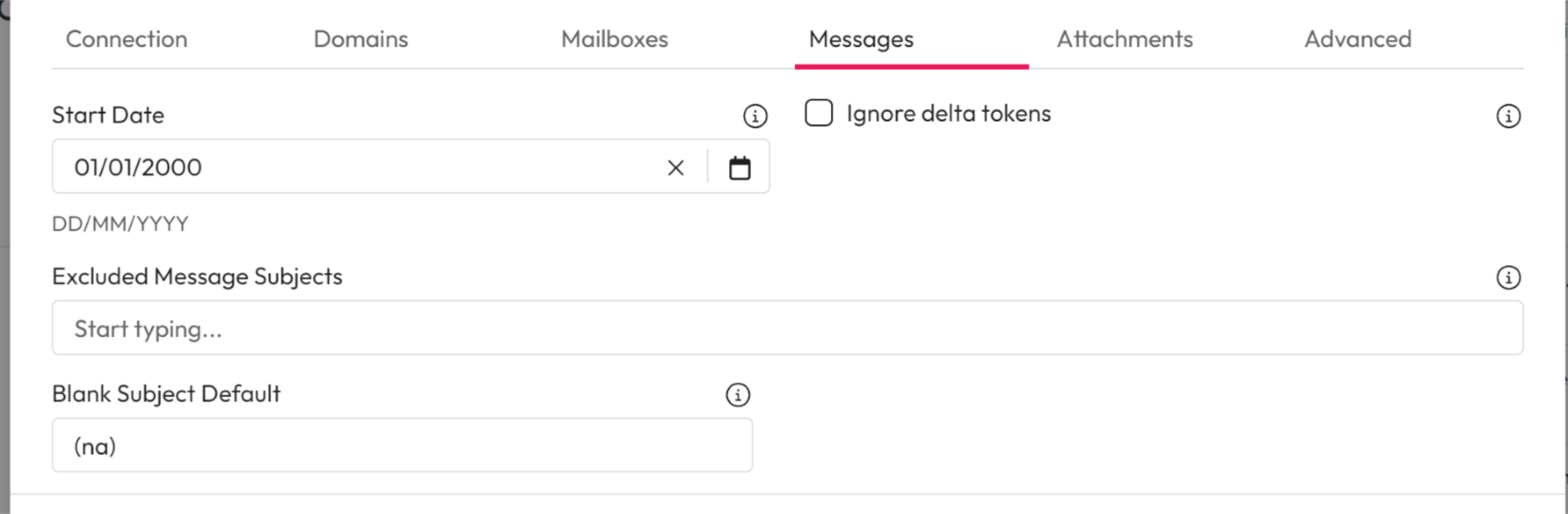
Messages
Start Date: Select the earliest date messages should be retrieved from when crawling a mailbox for the first time.
This also applies if Ignore Delta Tokens is checked.
End Date: Select the date of the latest message to retrieve.
Leave this empty for ongoing delta crawls.
Ignore delta tokens: Check this to ignore delta tokens and re-crawl all messages.
Use this to find missing messages, if the Start Date is changed, or to process deleted messages.
This is slower than a standard delta crawl.
Excluded Message Subjects: Limit the emails processed depending on their subject. Enter the subjects you don't want processed using regular expressions.
If blank, all messages will be processed.
Blank Subject Default: Enter a default subject for any messages processed without one.
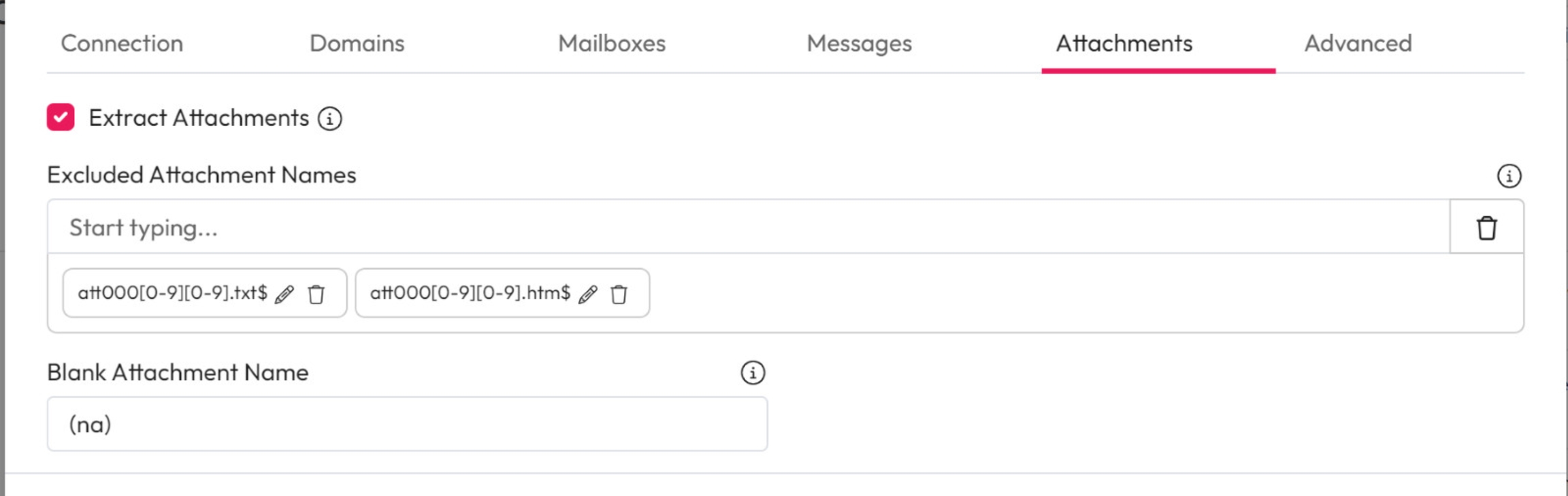
Attachments
Extract Attachments: Check this to extract and store attachments and email separately.
Excluded Attachment Names: Limit the attachments processed. Enter the attachment names you don't want to process using regular expressions.
If blank, all attachments will be processed.
Blank Attachment Name: Enter a default name for any attachments processed without one.
Advanced
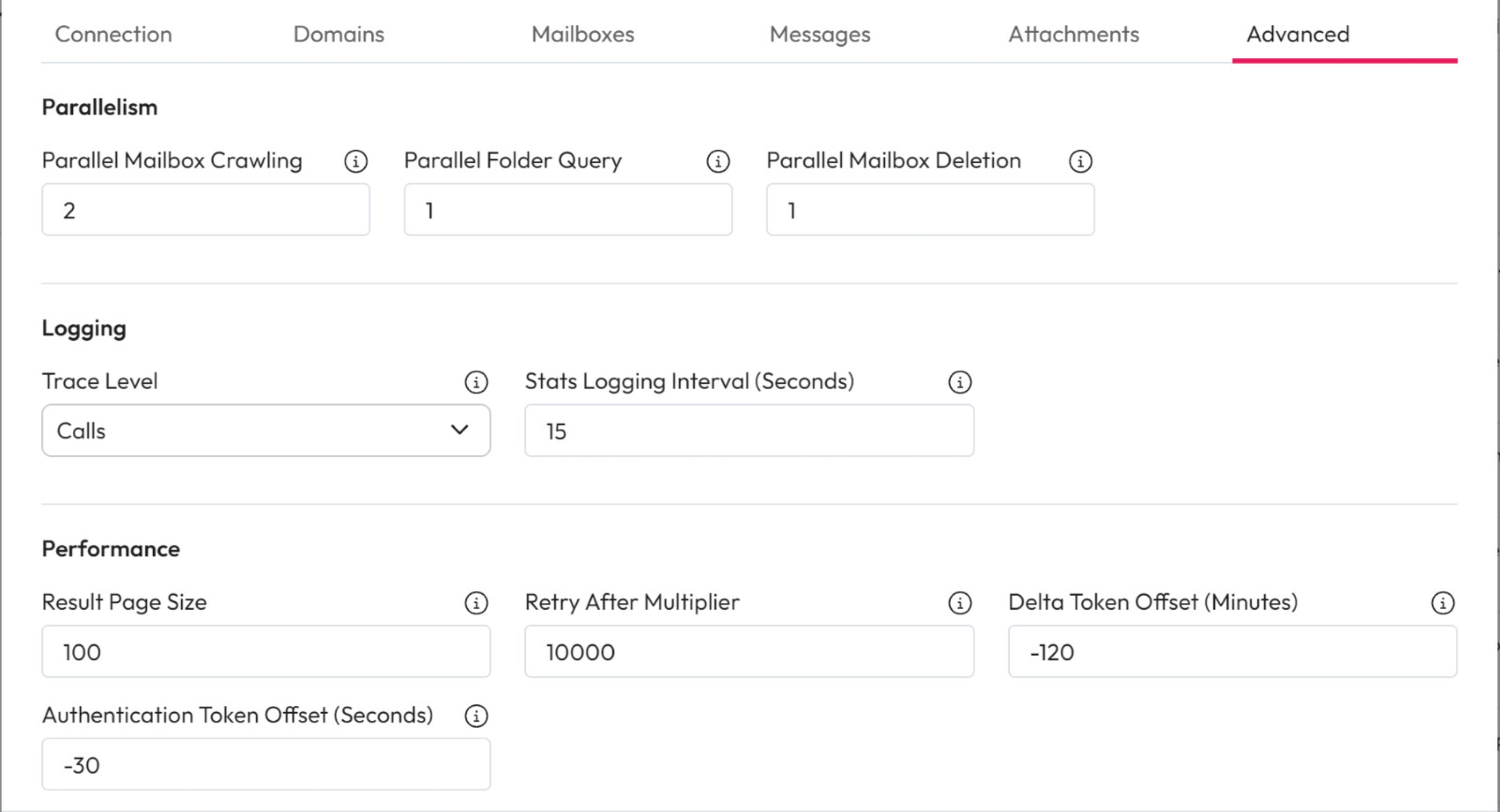
Parallelism
Parallel Mailbox Crawling: Enter the maximum number of mailboxes that should be crawled at once.
Parallel Folder Query: Enter the maximum number of Elastic queries that can be processed at once.
This may impact Elastic performance.
Parallel Mailbox Deletion: Enter the maximum number of mailboxes that can be deleted at once.
This may impact Elastic performance.
Logging
Trace Level: Select the connection trace level from the dropdown.
None - Do not log graph calls
Calls - Log URLs and status codes
All - Log URLs, status codes, request forms and JSON responses
Stats Logging Interval (Seconds): Choose how often the Graph API call stats are logged in seconds.
This includes the total number of calls, call rates, HTTP errors and 429 errors.
Set this to 0 to disable stats logging.
Performance
Results Page Size: Enter the maximum number of results retrieved in a single request.
Retry After Multiplier: Enter a multiplier to pause processing after receiving a 'retry after' message. The multiplier will be multiplied by the 'retry after' value.
Retry after values are typically between 1 and 3. A multiplier of 1000 will convert the value to that number of seconds.
Delta Token Offset (Minutes): Enter the number of minutes to overlap that is applied to a saved delta token.
This allows time zones to be accounted for.
Negative values are subtracted.
Authentication Token Offset (Seconds): Enter an offset in seconds that is applied to the authentication token expiry.
Negative values are subtracted.
Last updated