
General
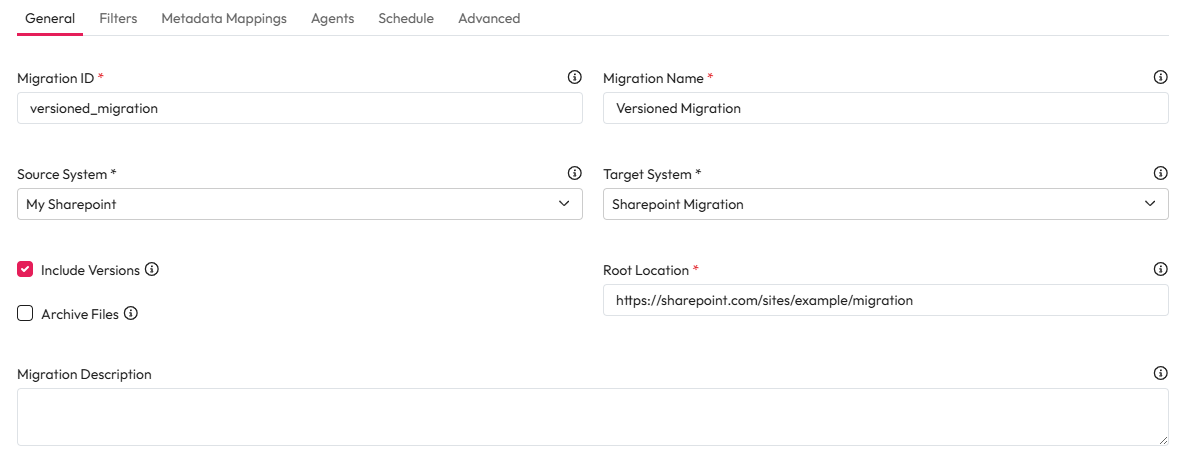
Enter a unique ID in Migration ID.
This will appear in the migration card.
Enter a name for the Migration into Migration name.
This will appear in the migration card.
Select the system to migrate from in the Source System dropdown.
Select the system to migrate to from the Target System dropdown.
Enter the location for the migrated data in Root Location.
This must be valid in the system source.
You can choose to add a description for this into the Migration Description.
Advanced Settings
Include Versions - If all versions of files are intended to be migrated as opposed to just the latest version, the Include Versions checkbox can be selected.
Please Note: Both the Source system and the Target system need to be versioned sources for this feature.
Archive Files - This archives your files, it does not copy them from your source.
We recommend talking to your Aiimi contact before ticking this option.
Helpful for decommissioning a legacy system.
Can only be used when migrating to Workplace AI.
Versioned Migrations
With Include Versions enabled, when downloading the Pre Migration extract all of the crawled versions from the Source system will be visible, broken down by the version number.

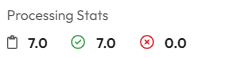
The Processing Stats also contain a total count of the individual versions.
From this point on, the migration can be processed as with a non-versioned migration. You will see all of the migrated versions in the Post Migration report.
If there are any errors encountered, then any subsequent versions are put into a state of error and will not be processed until the errors are resolved and a retry is initiated.