# OCR Engine
When setting up a new optical recognition program you need to enter the Config details before adding the details.
### General
1. Start by entering a Configuration ID.
2. Add a short description to be used to explain what the OCR is or for.
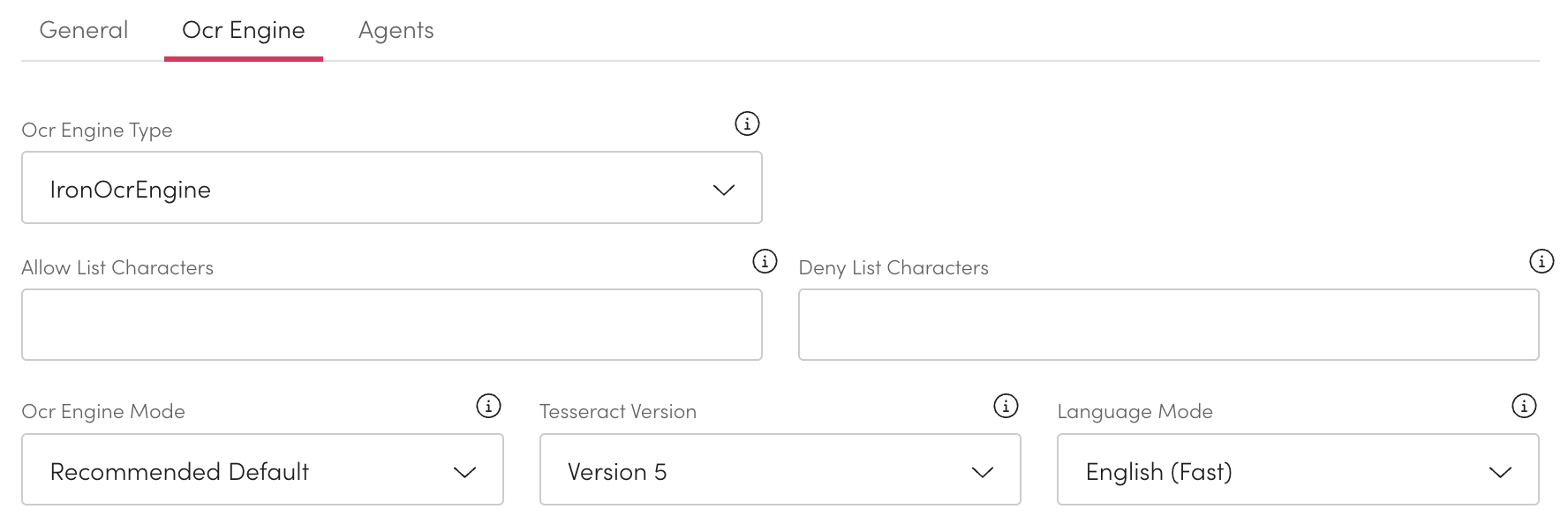
### Ocr Engine
1. Select the type from the Ocr Engine Type dropdown.
2. You can limit the characters recognised by entering them into Allow List Characters.
* You must include a space-character to retain whitespace.
* If left blank all characters will be included.
3. You can limit the characters recognised by entering them any into the Deny List Characters.
* If left blank all characters will be included.
4. Choose the Language Mode from the dropdown.
* English - The Default mode, it uses both an LSTM and OEM strategy to produce fast and accurate results.
* English (Best) - Uses an LSTM engine optimised for detail over speed.
* English (Fast) - Uses an LSTM tesseract engine optimised for speed over accuracy.
### Agent
1. Select the Source Agent you want to use for this Source Configuration.