# Filtering
Users can narrow down their results to more easily find relevant documents. Users can apply a filter based on metadata like Source, Date Created, Owner, etc.
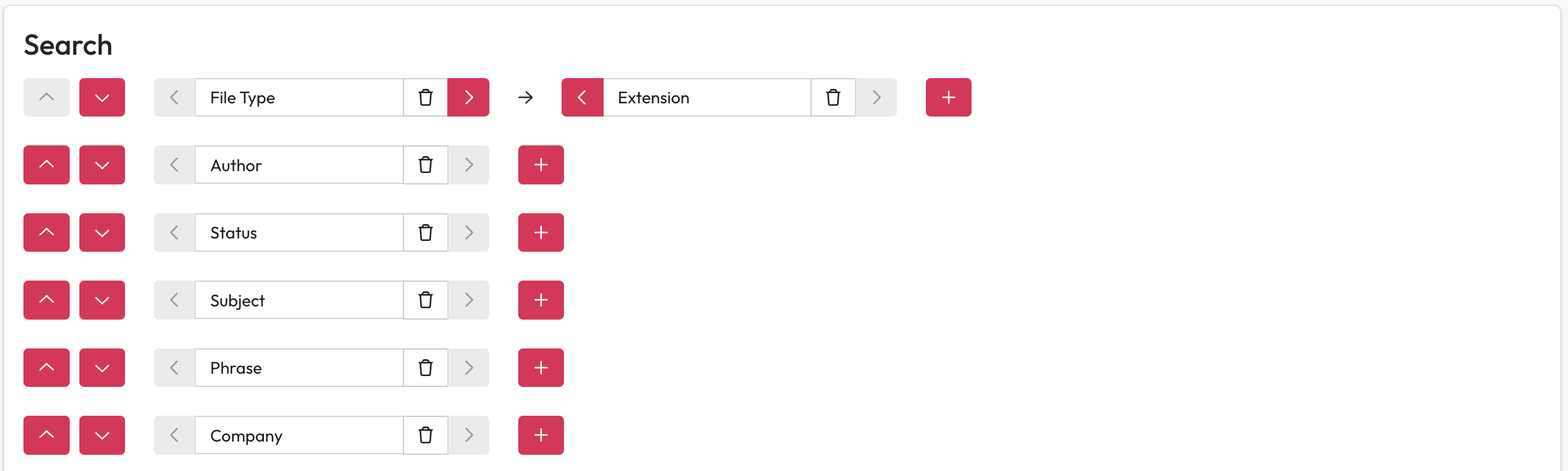
## Search
Select the Filters and in what order they appear in the left hand filter panel within Workplace AI.
1. Add a new filter field by selecting Add New Filter Definition.
2. Select from the Available Fields dropdown the field you want to add.
* This will then show you the Internal field name.
3. You can then choose to change the way the filter name is displayed by editing the Display Name.
4. Use the up and down arrows to adjust a filters placement.
## Search Allow (any)
You can choose the filters that users can select (any) from. Check the filters you want to apply this to.
### Compute total document counts for filters
Check this to show totals shown next to the (any) filter value. For massive systems this may slow down the response.
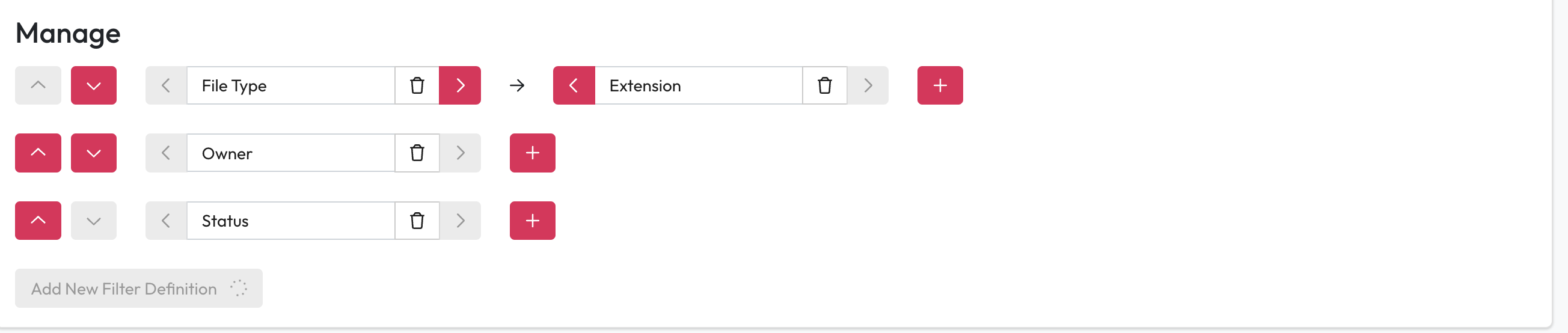
## Manage Filters
Select the Filters and in what order they appear in the left hand filter panel within Workplace AI.
1. Add a new filter field by selecting Add New Filter Definition.
2. Select from the Available Fields dropdown the field you want to add.
* This will then show you the Internal field name.
3. You can then choose to change the way the filter name is displayed by editing the Display Name.
4. Use the up and down arrows to adjust a filters placement.

 ## Manage Filters
Select the Filters and in what order they appear in the left hand filter panel within Workplace AI.
1. Add a new filter field by selecting Add New Filter Definition.
2. Select from the Available Fields dropdown the field you want to add.
* This will then show you the Internal field name.
3. You can then choose to change the way the filter name is displayed by editing the Display Name.
4. Use the up and down arrows to adjust a filters placement.
## Manage Filters
Select the Filters and in what order they appear in the left hand filter panel within Workplace AI.
1. Add a new filter field by selecting Add New Filter Definition.
2. Select from the Available Fields dropdown the field you want to add.
* This will then show you the Internal field name.
3. You can then choose to change the way the filter name is displayed by editing the Display Name.
4. Use the up and down arrows to adjust a filters placement.