# Content Server
Connect a Content Server source to Workplace AI to make the most of your data. Once you have selected a Source System type more detail will expand to customise this.
{% hint style="info" %}
For Livelink connections, contact your Aiimi representative.
{% endhint %}
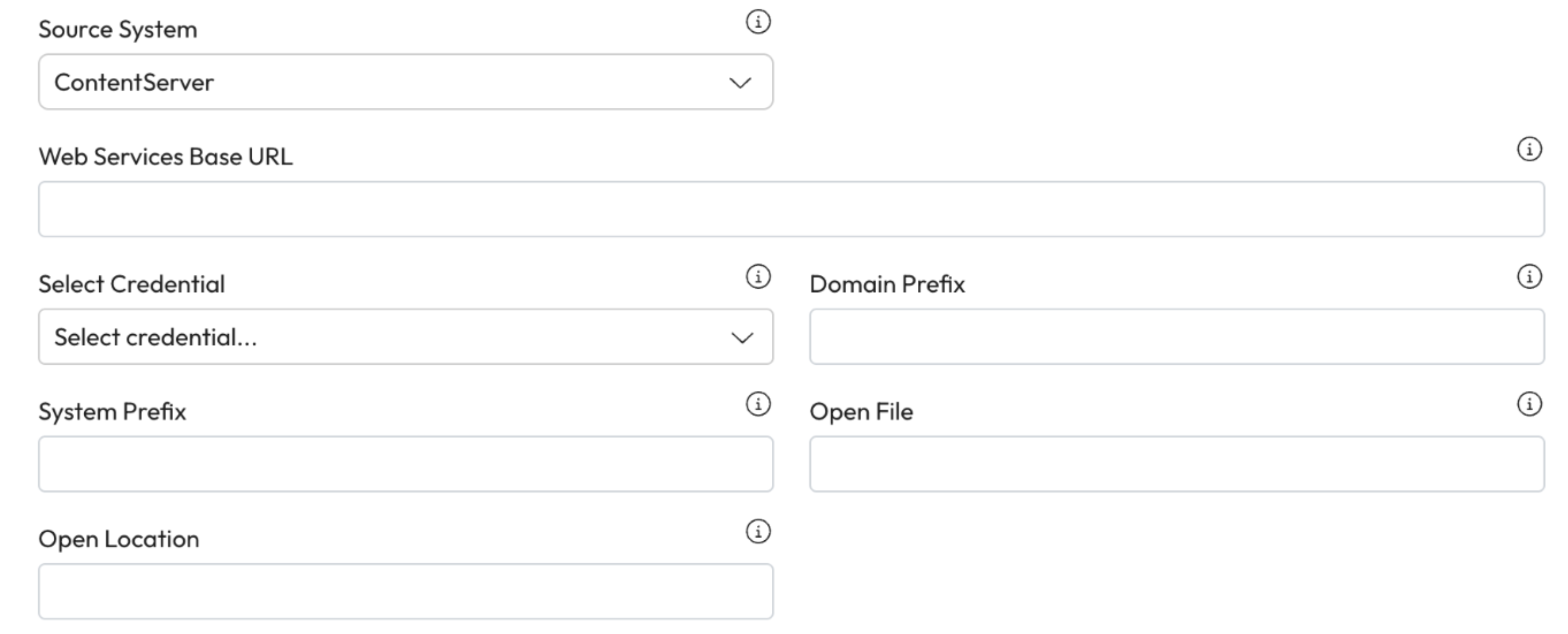
1. **Source System:** Select ContentSever from the dropdown.
## Initial Configuration Steps
1. **Web Service Base URL**: Enter the OpenText web service URL with a trailing slash.
* For example, .
2. **Credentials**: Choose a username and password from the dropdown list.
* *For support setting up credentials use* [*our guide on managing credentials.*](https://docs.aiimi.com/aiimi-insight-engine/control-hub/security/credentials)
3. **Domain Prefix:** Enter the prefix to identify domain users and groups.
4. **System Prefix:** Enter the prefix that makes the node IDs, users and groups unique.
* This must match the value of the matching security sync.
5. **Open File:** Enter a template URL to use for opening a file from the content server.
* This must be a single placeholder for the node ID.
6. **Open Location:** Enter a template URL to use for opening a folder from the content server.
* This must be a single placeholder for the node ID.
***
## Crawl Details
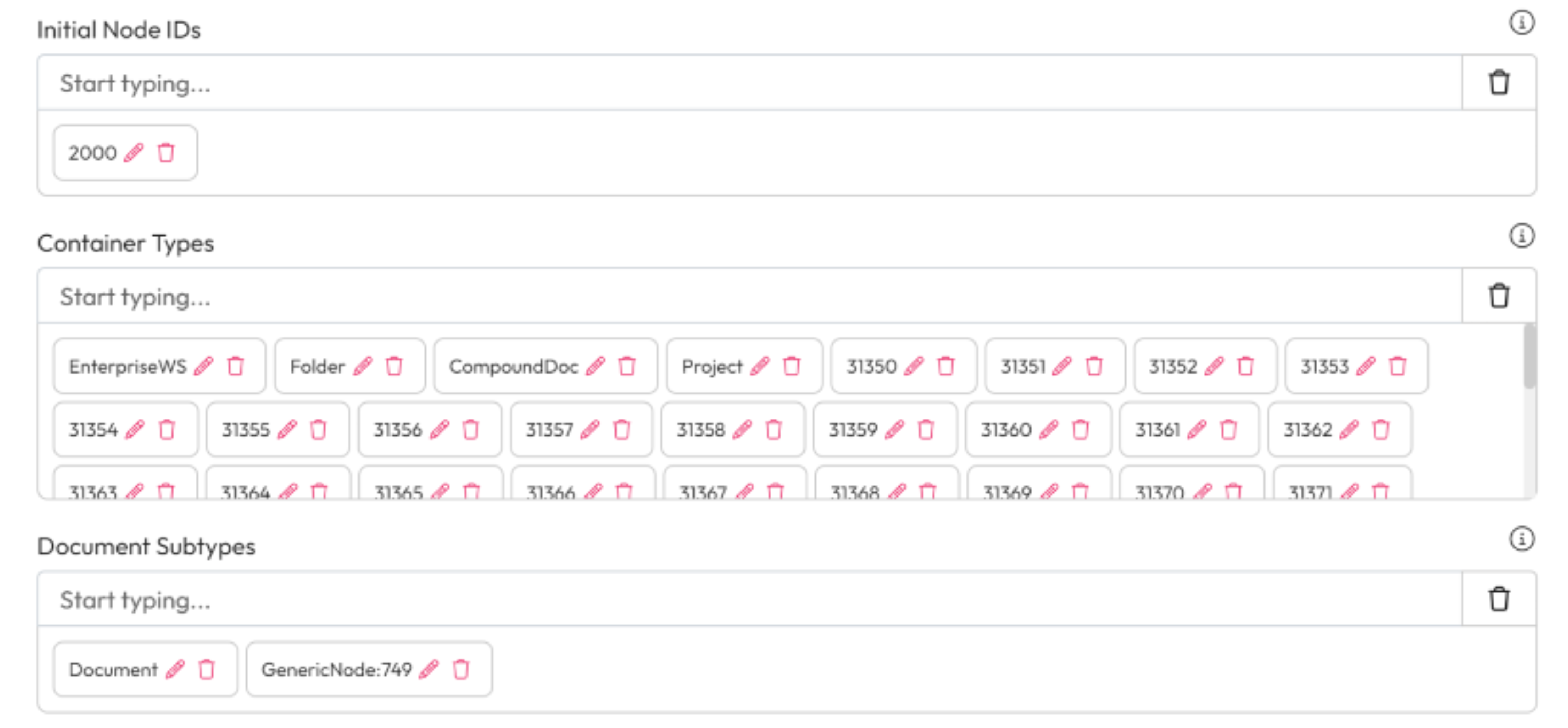
1. **Initial Node IDs:** Add Node IDs to identify where the crawl should stat from.
2. **Container Types:** Create a list of container types that should be crawled like a folder for this source.
3. **Document Subtypes:** Add the document subtypes that should be included in the crawl.
***
## Category and Attribute Filter
1. **Category Attribute:** Enter the category attribute name to filter on.
* For example, Migration Category:Migrated
2. **Attribute Value:** Enter a value to test.
* For example, HIVE
3. **Exclude:** Check to exclude matching nodes from the crawl. Nodes that don't have this category are treated as not matching.
***
## Renditions
1. **Index renditions as separate documents:** Check this to include the renditions of a file within the version history.
* This does not support advanced (minor and major) versioning.
* *Track Versions on the advanced tab must be checked for this to work.*
***
## Timeouts
1. **Send Timeout (seconds):** Enter how long the client side will wait for a response from the web service before timing out.
2. **Token Refresh Interval (seconds):** Enter how long authentication tokens will be used for before refreshing. This must be less than any configured cookie or token expiry times.
***
## Advanced
1. **Include owner and permissions:** If checked, the file owner and permissions are populated by the crawl.
* Disabling this can speed up the crawl, but files won't be correctly permission-trimmed in searches.
2. **Include node data:** If checked, the node data returned from EWS will be stored as metadata.
* This allows for custom enrichment steps that extract more Content Server properties. This is at the expense of additional Elastic storage.
3. **Include child files data:** If checked, the metadata for child files are calculated and stored in the hierarchy index. This can increase the crawl time.
***
## Completed the Source section
1. Once you have completed this section, select Crawl. [Learn how to complete the source Crawl set up.](https://docs.aiimi.com/aiimi-insight-engine/control-hub/agents/configurations/source-configurations/source-crawl)