# Big Query Cataloguer
Connect a Big Query Cataloguer to Workplace AI to make the most of the data on your machines.
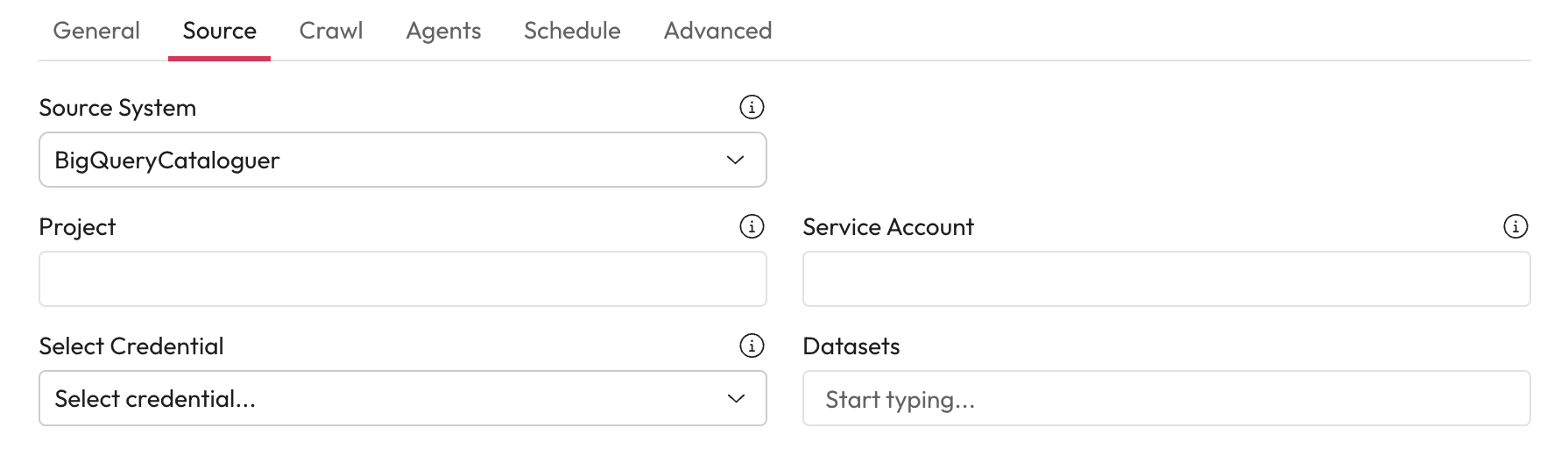
1. **Source System:** Select Big Query Cataloguer from the dropdown.
## Initial Configuration Steps
1. **Project:** Enter the Google Cloud project ID containing the BigQuery datasets.
2. **Service Account:** Enter the Google Cloud service account to use.
* This is the client email in the JSON file generated when creating the service account.
* This account must have the right access to the dataset, query tables, views, read metadata and permissions.
3. **Select Credential:** Select the private key to authenticate access from the dropdown.
* This is the private\_key in the JSON file generated when creating the service account. This should match the file and include the \n.
* *For support setting up credentials use* [*our guide on managing credentials.*](https://docs.aiimi.com/aiimi-insight-engine/control-hub/security/credentials)
***
## Data Settings
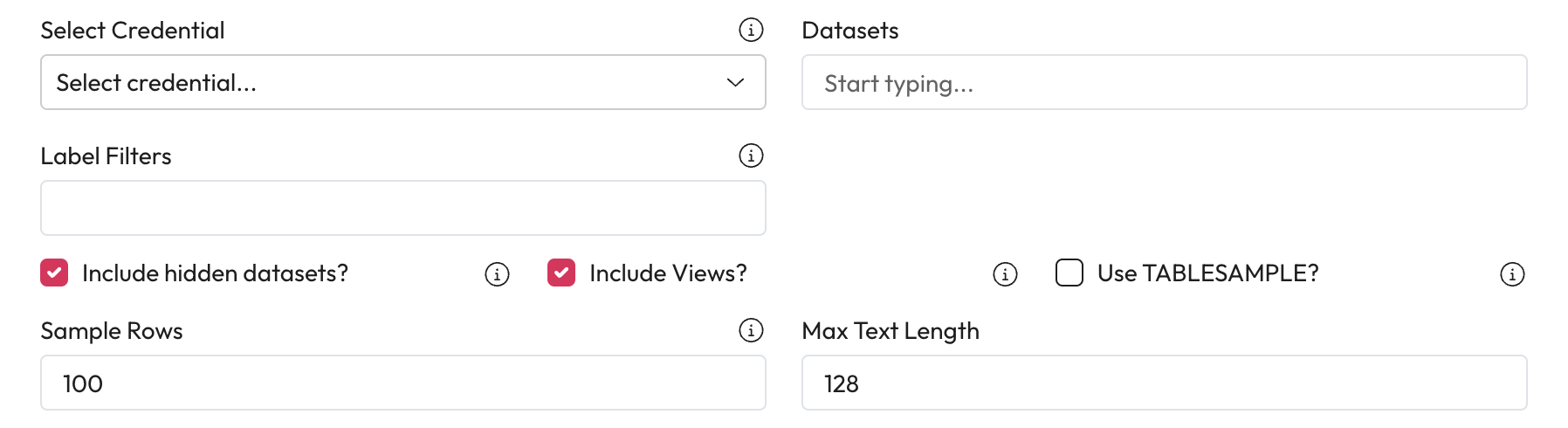
1. **Datasets:** Enter the datasets to be included in this crawl.
2. **Label Filters:** Enter filters using Google Clouds syntax to filter your datasets.
* [See Google Clouds documentation for syntax details. ](https://cloud.google.com/bigquery/docs/reference/rest/v2/datasets/list)
3. **Include Hidden Datasets:** Check this to include hidden datasets in this catalogue.
4. **Include Views:** Check this to include views and tables in this catalogue.
5. **Use Table Sample:** Check this to sample data from tables.
* This feature is currently Alpha, we recommend talking to your Aiimi contact for more information.
6. **Sample Rows:** Enter the number of sample rows to extract from each table.
* If set to 0 no sample will be generated.
* Existing samples will be preserved where possible.
7. **Max Text Length:** Enter the maximum number of characters that will be taken from a text column.
***
## Optional Mappings
### Dataset label mappings
Map your Workplace AI metadata fields to the BigQuery labels for datasets.
1. **Add New Item:** Select this to add a new dataset label mapping.
2. **Database Model Property:** Enter the database model property from Workplace AI in the left column.
* This is case sensitive
3. **BigQuery Label:** Enter the BigQuery label key name that you want to map in the right column.
* This is case sensitive
4. **Save the Mapping:** Select the check to save this mapping.
### Table and View label mappings
Map your Workplace AI metadata fields to the BigQuery labels for tables and views.
1. **Add New Item:** Select this to add a new table and view label mapping.
2. **Database Model Property:** Enter the database model property from Workplace AI in the left column.
* This is case sensitive
3. **BigQuery Label:** Enter the BigQuery label key name that you want to map in the right column.
* This is case sensitive
4. **Save the Mapping:** Select the check to save this mapping.
***
## Completed the Source section
1. Once you have completed this section, select Crawl. [Learn how to complete the source Crawl set up.](https://docs.aiimi.com/aiimi-insight-engine/control-hub/agents/configurations/source-configurations/source-crawl)