# Security - Scheduling
Choose when and how regularly security and syncs are run. This gives new users access, updates changes to users and groups and removes users access.
All times are in Coordinated Universal Time (UTC).
## Periodically
Choose to run this job at regular occurring intervals using a cron expression.
1. **Schedule Cron:** Enter your Cron expression to schedule this periodically.
* Create your Cron expression using [www.cronmaker.com](http://www.cronmaker.com/)
2. **Timeout:** This will stop a job that runs for an excessive amount of time. By default this will be -1 which applies no limit.
* Applying a timeout can ensure unnecessary jobs aren't taking up processing power.
***
## Timetable
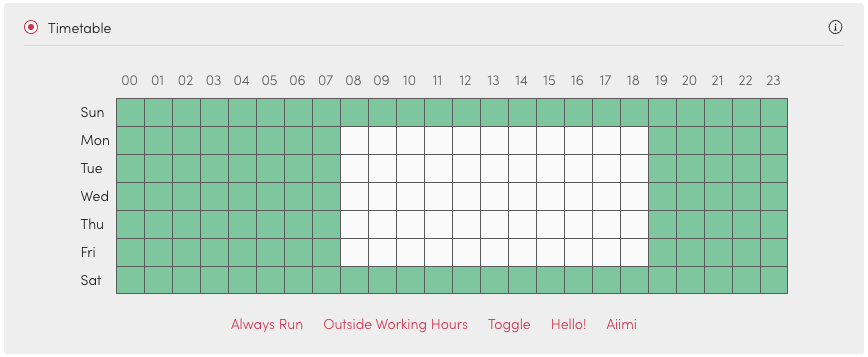
Choose Timetable to set the time and day of this job over a 7 day. These schedules will run at the same time every week until manually stopped.
1. Selecting a square from the grid will invert its setting.
* Green is active and the job will run during this time.
* White is inactive and it will not run.
2. There are no limits to the number of active times.
### Preset Options
* **Always Run:** This marks all the squares as active.
* This will give the most accurate representation but will use more processing capabilities.
* **Outside Working Hours:** Will set Mon - Fri 8am-6pm as inactive.
* This will reduce any issues to users as processing power can be contained.
* **Toggle:** This inverts the selection switching anything from active to inactive and vice versa.
### Manually Run
This ensures the job will only run when started by an Admin. The job can be started from the configurations pages.
### Disabled
Disabling this from scheduling means it will not run automatically and can not be run manually.